
The Live Monitor feature (also known as Answering Machine Emulation) allows an NEC SL desk phone to screen voice messages in real time, similar to a home answering machine. While the caller is leaving a voicemail, the user can listen through the phone’s speaker and choose whether to intercept the call or let it continue to voicemail.
This Tech Tip applies to both the NEC SL2100 and NEC SL1100 phone systems.
Assigning a Live Monitor Key to the Phone
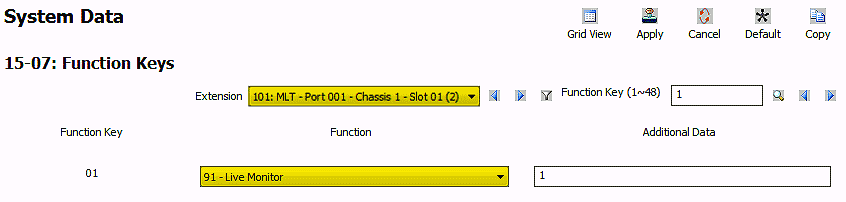
Assigning the Live Monitor Key Using PCPro
- Connect to the phone system using PCPro
(For connection steps, refer to: How to Connect to the NEC SL2100 or SL1100 Phone System for Programming) - Go to Program 15-07: Function Keys
- Use the Extension dropdown menu to select the desired extension
- Set the value of the function key to 91 – Live Monitor
- Apply and upload your changes
Assigning the Live Monitor Key Using a Phone
- Press the Speaker key
- Dial
751 - Press the programmable function key you wish to assign to Live Monitor
- Dial
91 - Press the Speaker key to save and exit
Using the Live Monitor Key
To Enable Live Monitoring
- Press the Live Monitor function key while the phone is idle
- The LCD will briefly display Set Call Screening, then return to its normal state
- The Live Monitor key will flash green to indicate it is active
- When a caller begins to leave a message, the phone will play the message through the speaker in real time
- To intercept the call, lift the handset and begin speaking
To Disable Live Monitoring
- Press the flashing Live Monitor function key again