
This Tech Tip covers common IP phone functions on the NEC SL2100, along with how to identify and resolve error messages during setup or registration.
Common SL2100 IP Phone Functions
Confirming the IP Phone’s Current Ethernet Settings
- Hold down the Help key until a menu appears
- Press 2 for System Information
- Press 1 for Network Settings
- Press Down to scroll through DHCP, IP Address, Default Gateway, Subnet Mask, and other Ethernet settings
Pinging the IP Address from the IP Telephone
- Hold down the Help key until a menu appears
- Press 3 for the Ping command
- Use the dial pad to enter the IP address you want to ping
- ⚠️ Tip: Dial * to insert a dot and move to the next octet
- Press OK
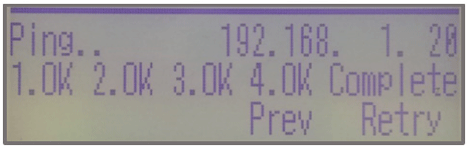
Successful Ping Sample:
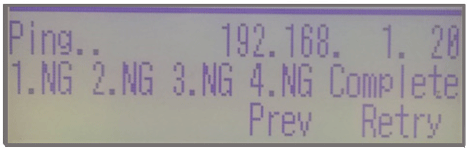
Failed Ping Sample:
Confirming the IP Phone’s Current SIP Settings
- Hold down the Help key until a menu appears
- Press 2 for System Information
- Press 2 for SIP Settings
- Press Down to scroll through User ID, Connecting Server IP, 1st Server IP, Server Port, NAT Mode, and other settings
Troubleshooting Terminal Error Messages
Error Message: DHCP Server Not Found
DHCP Server not found is an indication that the NEC SL2100 phone has DHCP Enabled so that it may receive its IP Address, Subnet Mask and Default Gateway automatically but did not receive a reply when requesting this information from the LAN’s DHCP Server.
Common causes:
No DHCP Server on the Network, Bad connection from phone to Network Switch.
What to do next:
Confirm Network connection from Phone’s LAN Port to Network switch is good and working, confirm if the LAN the phone is connected to has a DHCP Server. If there is a DHCP Server, check to see if other devices are getting IP info or not. If no DHCP Server is present set DHCP to disable, then manually assign the IP Address, Subnet Mask, and Default Gateway to the telephone.
Error Message: SIP Server Not Found
SIP Server Not Found is an indication that the phone cannot contact the IP Address set as the SIP Server or cannot contact that SIP Server on the Server’s Registration Port (Default: 5080). Please note the IP Address of the SL2100 as set in program 10-12-09 should be used for local IP telephone’s SIP Server Address, and not the CPU address in program 10-12-01. This is true even when using the SL2100 built-in 8 VoIP resources with no VoIP Daughter board installed.
Other common causes:
Physical connection from phone to Network, System to Network, Phone and System assigned to different Subnets, phone does not have a Default Gateway Address assigned, phone has incorrect or no SIP Server IP Address assigned, Firewalls with SIP ALG enabled that modify or block the SIP Registration Ports.
What to do next:
Confirm the IP Address, Subnet Mask, and Default Gateway address of the telephone and of the SL2100 (Programs 10-12-09, 10-12-10, 10-12-03). If IP addresses are within the correct Subnet, then Ping the IP Address of the system from the telephone. If Ping Fails, also ping the default gateway assigned to phone. If this fails too, check physical connections
Error Message: Unauthorized Auto Logon
Unauthorized Auto Logon indicates the system is set for Registration Mode “Automatic” but the phone either does not have a User ID and Password entered or the Username & Password does not match a Personal ID Index.
Common causes:
No User ID or Password set in phone or Incorrect User ID and Password set on a phone that is attempting to connect to a system set for Automatic Registration Mode in program 10-46-01.
What to do next:
Confirm the SIP User ID, and Password loaded in Telephone, then check programs 84-22 (Personal ID Index User Name & Password settings) and program 15-05-27 Personal ID Index assignment for the extension you are attempting to register to.
Error Message: Not Found Extension No
Not Found Extension Number indicates that the User ID and Password entered in the phone is either not a match to a Personal ID index or that Index is not assigned to any extension. It may also indicate that the extension number does not exist in 11-02.
Common Causes:
The User ID or Password in the phone does not match a User ID Index in program 84-22, or the index it does match has not been assigned to an Extension in 15-05-27.
What to do Next:
Confirm the Personal ID Index that the extension is assigned to in program 15-05-27, then confirm what that Index’s User ID and Password is in 84-22, then set that User ID and Password into the phone under: 2 SIP Settings > 1 SIP User > 1 User ID and 2 for Password. Then save changes and allow phone to reboot.
Error Message: Double Assignment
Double Assignment means that the Extension number the phone is attempting to register to already has a MAC address registered to that extension.
Common Causes:
Attempting to register to an extension that already has a working IP phone assigned to it, and/or had a working IP phone registered to it at one time.
What to do next:
If there is a working phone using that extension, assign the phone a different extension. If there is no longer a phone using that extension but was previously, then make sure the phone is disconnected and delete that phone’s registration. Once the registration has been deleted and you have exited programming then plug back in the new phone and re-attempt your registration.
How to Delete an IP Phone Registration
- Go to Program 90-23-01 using either WebPro or telephone programming
- ⚠️ Tip: This program is not available in PCPro
- If using telephone programming:
- Enter the extension number
- Dial 1 to delete the IP phone
- Press Hold
- If using WebPro:
- Place a check next to the extension
- Click Apply
⚠️ Tip: The IP phone must be disconnected before you can successfully delete its registration.