
This Tech Tip demonstrates how to configure Voicemail to Email notifications on the NEC SL2100 phone system using Gmail SMTP settings. With this feature activated, users will receive a WAV file copy of their voicemail directly in their email inbox. This tip applies to the NEC SL2100 Phone System only.
Get Connected
This procedure requires access to the NEC SL2100 using the PCPro Programming Software.
To download PCPro or learn how to connect to the phone system, refer to:
How to Connect to the NEC SL2100 or SL1100 Phone System for Programming
Prerequisites
- NEC SL2100 Voicemail to Email Notification License
- Gmail account credentials (username and password)
- Gmail settings:
- POP3 enabled
- IMAP disabled
- Access for less secure apps turned off
PCPro Programming Steps
Step 1: Network Configuration
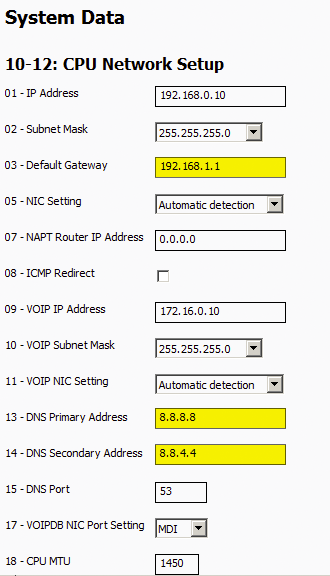
- Go to Program 10-12: CPU Network Setup
- Set 10-12-03: Default Gateway to the LAN IP address of the router used for internet access
- Set 10-12-13: DNS Primary Address to
8.8.8.8(Google Public DNS) - Set 10-12-14: DNS Secondary Address to
8.8.4.4(Google Public DNS)
Step 2: SMTP Setup
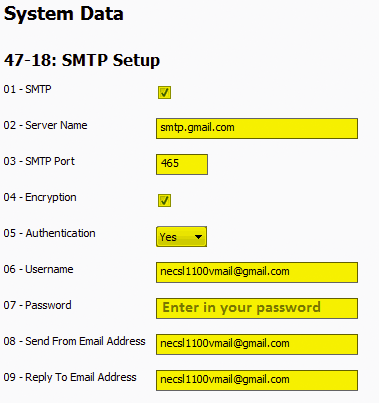
- Go to Program 47-18: SMTP Setup
- Enter the following values:
- 47-18-01 SMTP: Checked
- 47-18-02 Server Name:
smtp.gmail.com - 47-18-03 SMTP Port:
465 - 47-18-04 Encryption: Checked
- 47-18-05 Authentication: Yes
- 47-18-06 Username: Your Gmail address
- 47-18-07 Password: Your Gmail password
- 47-18-08 Send From Email Address: Your Gmail address
- 47-18-09 Reply To Email Address: Your Gmail address
Step 3: Assign Email Notification to Users
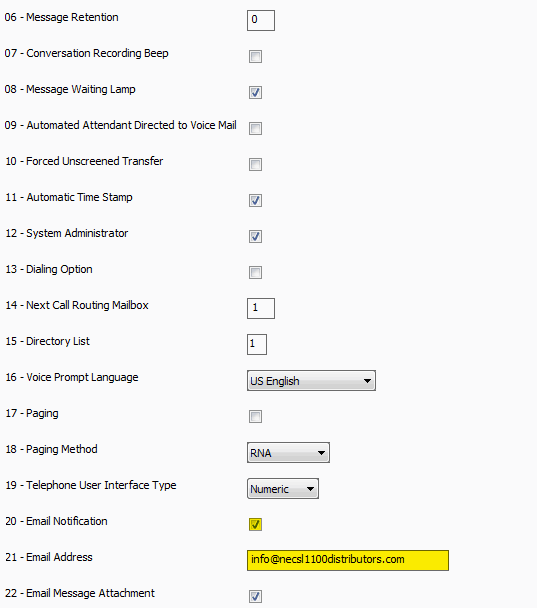
- Go to Program 47-02: InMail Station Mailbox Options
- Use the Mailbox (1~128) search field to locate the desired extension (e.g., Ext. 101)
- Set 47-02-20: Email Notification to Checked
- Set 47-02-21: Email Address to the user’s desired email address
Repeat steps 9–10 for each user who needs voicemail-to-email delivery
Final Step: Save Changes
Apply and upload all changes to activate the configuration.