
This Tech Tip demonstrates two methods for uploading a license file to the NEC SL2100 phone system: using PCPro or using WebPro. A valid license file is required to activate certain system features, such as SIP Trunks, VoIP Stations, and Voicemail-to-Email.
Get Connected
This procedure requires access to the NEC SL2100 using the PCPro Programming Software.
To download PCPro or learn how to connect to the phone system, refer to:
How to Connect to the NEC SL2100 or SL1100 Phone System for Programming
Uploading Licenses Using PCPro
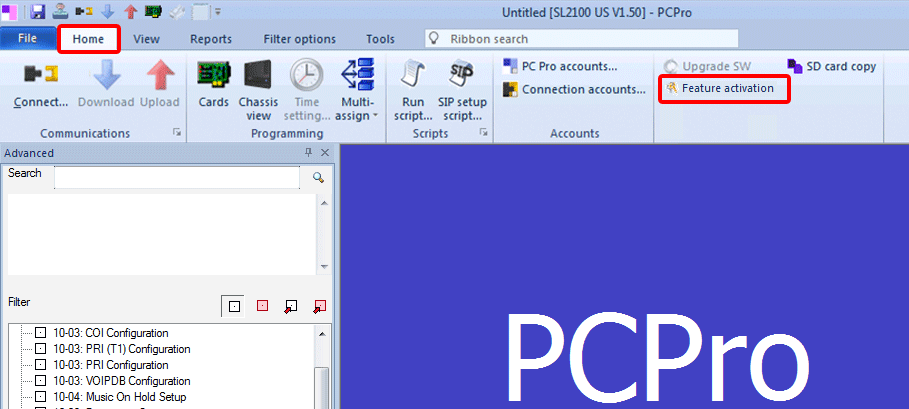
- Click on the Home tab in PCPro
- Click on Feature Activation
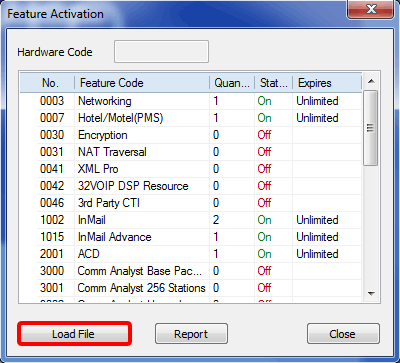
- In the Feature Activation pop-up window, click the Load File button
- In the next pop-up window, navigate your computer to locate the license file
- Select the license file
- Click the Open button
- Reboot the SL2100 and verify that all activated features are functional
⚠️ Note: The license will be uploaded to the NEC SL2100 phone system
Uploading Licenses Using WebPro
- Log in to WebPro
- Click on the wrench icon (Maintenance)
- Click the License Upload link
- Click the Browse… button
- In the next pop-up window, navigate your computer to locate the license file
- Select the license file
- Click the Upload button
- Click the refresh screen icon, or disconnect then reconnect to the system to verify licenses
‼️ Important: A system reboot may be required for the license to function