
The NEC PCPro Programming Software can be used to easily import an existing programming database to the NEC SL phone system.
This tech tip applies to both the NEC SL2100 and NEC SL1100 Phone Systems.
Get Connected with PCPro
This procedure requires access to the NEC SL2100 using the PCPro Programming Software.
To download PCPro or learn how to connect to the phone system, refer to:
How to Connect to the NEC SL2100 or SL1100 Phone System for Programming
Uploading the Database Using PCPro
- Click the File tab
- Choose the Open option
- Navigate to the database on your computer
- Click the Open button
- Click the Upload button
(this is the big, red upward arrow in the Home tab) - In the Upload pop-up window, click the Start button
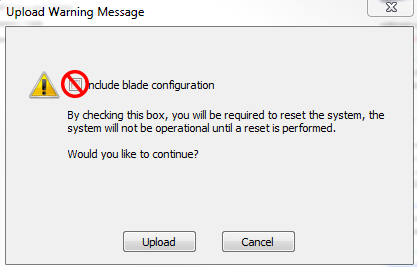
- ⚠️ Important: A warning message will appear asking if you want to Include Blade Configuration. Only select or check Include blade configuration if the database you are uploading contains the same cards and blade configuration as the system you’re uploading to. ‼️ If you’re not sure do not check the box.
- The database will be uploaded to the system
- After the upload is completed, disconnect from the system, then reconnect
Performing a System Initialize
- Click the Tools tab
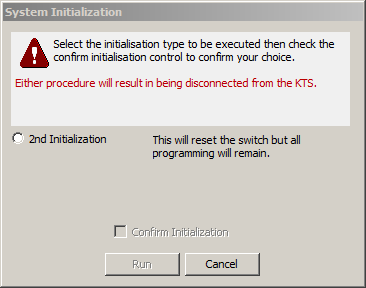
- Click the System Initialize button
- Click the checkbox next to 2nd Initialize
- Click the checkbox next to Confirm Initialization
- Click the Run button
- After the system reboots, log back in and verify your database
Final Steps
- Save a copy of the current database with your newly uploaded changes
- Disconnect from PCPro if all programming is complete