
The DT920 IP color phone requires additional setup steps compared to standard black-and-white NEC IP phones. This guide walks through the complete registration and licensing process for connecting the DT920 to an NEC SL2100 phone system.
System Requirements
To successfully register the DT920, ensure your system meets the following:
- NEC SL2100 system firmware version 2.20 or higher
- NEC SL2100 PCPro software version 2.20 or higher
- Valid Gigabit Ethernet / 32-Button License
- DT920 phone connected to the same local network as the SL2100
Part 1: Registering the DT920 via Telephone Programming
- Plug the DT920 into the same network as the SL2100.
- On the DT920, press:
HOLD + TRANSFER + * + # - Navigate to the password field and enter:
6633222 - Configure the following settings:
- SIP Settings
- Press
2– SIP Settings - Press
2– SIP Server Address - Press
1– 1st Server Address- Enter the IP address from PCPro Program 10-12-09
- Press OK, then Exit
- Press
- SIP Server Port
- Press
4– SIP Server Port - Press
1– 1st Server Port- Enter:
5080 - Press OK, then Exit
- Enter:
- Press
- Network Settings
- Press
1– Network Settings - Press
6– Advanced Setting - Press
5– LLDP Mode- Arrow up to Disable
- Press OK, then press Exit repeatedly until prompted to Save
- Press
- SIP Settings
- Select Save. The phone will reboot and attempt to register.
⚠️ Tip: Once the DT920 is registered, you can continue setup via the phone’s web interface.
Part 2: Accessing the DT920 Web Interface
Find the Phone’s IP Address
- Press and hold the Home button.
- Dial
2 + 2, then press the Down soft key.
Log In via Web Browser
- Open a browser and enter the phone’s IP address into the address bar.
- Use the following login credentials:
- Username:
ADMIN - Password:
6633222
- Username:
Part 3: Assigning the Gigabit Ethernet / 32-Button License (Web Method)
Before assigning the license, upload the appropriate license file to the SL2100 using PCPro or WebPro.
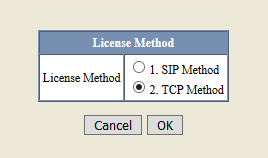
Select the License Method
- Expand License Settings
- Click License Method
- Check the box next to TCP Method
- Click OK, then OK again
Set the IP Address
- Expand TCP License Settings
- Go to License Server Settings
- Select Server Address
- Enter the IP address found in PCPro Program 10-12-09
- Click OK, then OK again

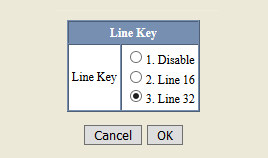
Assign Line Key License
- Click License Request
- Select Line Key
- Check the box for either Line 16 or Line 32, depending on your license
- Click OK
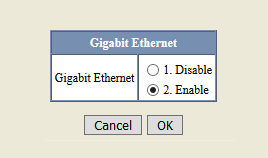
Enable Gigabit Ethernet
- Click Gigabit Ethernet
- Check the box for Enable
- Click OK, then click Save
The phone will reboot and obtain a license from the system.
Part 4: Assigning the License via Telephone Programming (Alternative Method)
If you prefer to assign the license directly from the phone:
- On the DT920, press:
HOLD + TRANSFER + * + # - Enter the password:
6633222 - Navigate as follows:
- Press
7– License Settings- Press
1– License Method- Press
2– TCP - Press OK, then Exit
- Press
- Press
2– TCP License Settings- Press
1– License Server Settings- Enter the IP address from PCPro Program 10-12-09
- Press OK, then Exit
- Press
2– License Request- Press
2– Line Key - Press
2– Line 32 - Press OK, then press Exit until the Save prompt appears
- Press
- Press
- Press
- Press
- Select Save. The phone will reboot.
⚠️ Tip: When the license is active, the phone’s display will show four dots (●●●●) to represent four pages of programmable buttons. Use the Multi key to cycle through them.