The NEC SL2100 supports up to 100 pre-recorded VRS (Voice Response System) messages, which can be played over an external paging system. This is ideal for emergency announcements, school bell tones, shift changes, or any other recurring messages you want to broadcast.
Required Equipment
- External paging system or amplifier
- 8-Port Digital Extension Card (each card supports one paging zone)
❗ Important: VRS messages do not repeat on playback. For emergency messages, record the message multiple times in sequence to simulate a repeating loop.
⚠️ Tip: The system’s default on-hold message is stored in VRS mailbox 001. To avoid overwriting it, only use mailboxes 002 through 099 for custom messages.
Step 1: Record a VRS Message
Perform these steps from any extension with VRS access:
- Dial:
616 + 7 + [002–099] - Speak your message clearly. Recording begins immediately.
- Hang up to end the recording.
Step 2: Preview the Message
To listen to the message over your handset:
- Dial:
616 + 5 + [002–099]
Step 3: Play the VRS Message Over External Paging System
You can broadcast the message system-wide or to a specific paging zone.
Play to all paging zones:
- Dial:
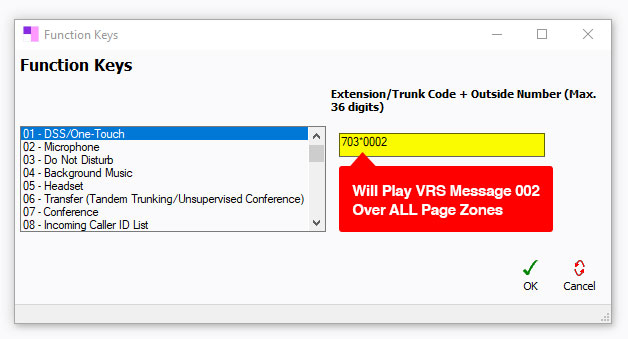
703 + * + 0 + [002–099]
(Example:703*0002plays message 002 to all zones)
Play to a specific zone:
- Dial:
703 + * + [zone number] + [002–099]
(Example:703*2005plays message 005 to zone 2)
Step 4: Assign a One-Touch Key for Easy Playback
To make it easier to trigger a VRS message, you can assign the playback code to a DSS or One-Touch key using PCPro:
- Open Program 15-07: Function Keys
- Use the dropdown menu to choose the extension you want to program
- Set the desired key to
01 – DSS/One-Touch
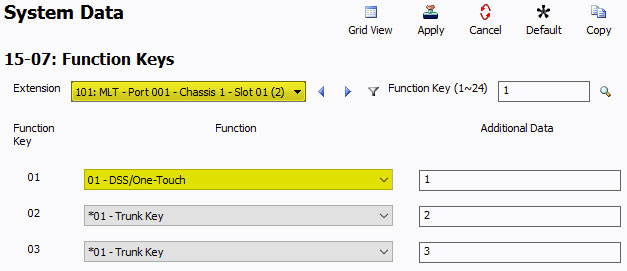
- In the pop-up window, enter the dial string for the message playback
- Example:
703*0002(plays message 002 on all zones)
- Example: