
This Tech Tip demonstrates how to import a pre-recorded auto attendant WAV greeting file to the NEC SL2100 using the WebPro interface. This method is the only way to upload custom greetings, PCPro cannot be used for this purpose.
WebPro Programming Steps
⚠️ Important:
Greeting files must meet the following requirements:
- File size must be under 2MB
- Format must be 8-bit, 8kHz, Mono WAV
Note: This method applies to both the NEC SL2100 and SL1100 systems.
- From the WebPro home screen, click the speaker icon on the top toolbar.

- In the left sidebar, click “InMail Audio Up/Down load (Routing).”
- In the Routing Mailbox No. (1–32) field, enter the mailbox number where the greeting should be stored.
- Click the “Browse” button and navigate to the location of the WAV file on your computer.
- Select the file and click “Upload.”
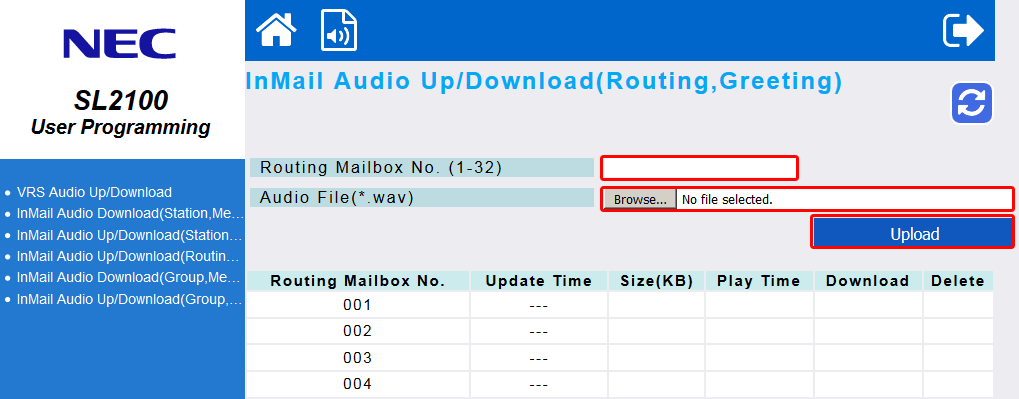
The greeting becomes active immediately after upload.
Testing Your Greetings
To verify the greeting was uploaded correctly, follow these steps from Extension 101:
- Press the “VM” soft key.
- Dial
72. - Press
4for the instructions menu. - Dial the Routing Mailbox Number you uploaded the greeting to (e.g.,
001). - Press
5to listen to the greeting and confirm playback.