
This Tech Tip demonstrates how to upload a music on-hold WAV file to the NEC SL2100 phone system using the WebPro portal.
⚠️ Tip: Greetings and on-hold messages can only be uploaded through the WebPro interface. These steps cannot be completed using PCPro.
File Requirements
- File size must be under 2MB
- File format must be 8-Bit, 8kHz, Mono WAV
Logging in to WebPro
- Open a web browser and type the phone system’s IP address into the URL bar
(Click here to learn how to locate the SL2100 IP address) - Log in using the following credentials:
- Username:
USER1 - Password:
1111
- Username:
- Click the Login button
WebPro Programming Steps
- At the top of the WebPro home screen, click the Speaker icon
- On the left sidebar, click VRS Audio Up/Download
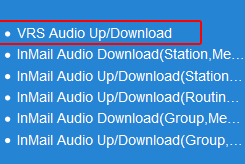
- In the Message No. (1–100) field, enter the desired message number (e.g.,
1) - Click Browse
- Navigate to and select your audio file
- Click Upload
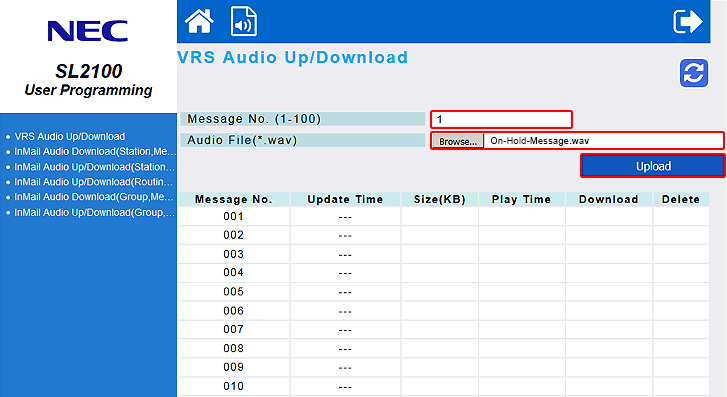
The on-hold message will become active immediately after uploading.
Testing Your Greeting
To verify that the file has loaded correctly, perform the following steps from Extension 101:
- Lift the handset or press the Speaker key
- Dial:
616 5 001- This plays VRS message number 1
⚠️ Tip: If you uploaded the greeting to a different message number (e.g., 002), dial 616 5 002 to test that message.